Cortellis CCI MCP Server
Prerequisites
Before you begin, ensure you have:
- A Clarivate account with an active Cortellis subscription.
- Without a valid subscription, the tools will authenticate successfully but will return an error indicating that a valid subscription is required.
- Access to Microsoft 365 Copilot Chat with the CCI MCP federated connector available in your organization (enabled by your Copilot administrator).
Setup Instructions
Follow these steps to connect the CCI MCP connector and start using it in Microsoft 365 Copilot Chat:
- Open Microsoft 365 Copilot Chat and sign in with your work account.
- Select the ellipsis (...) menu, and then select Settings.
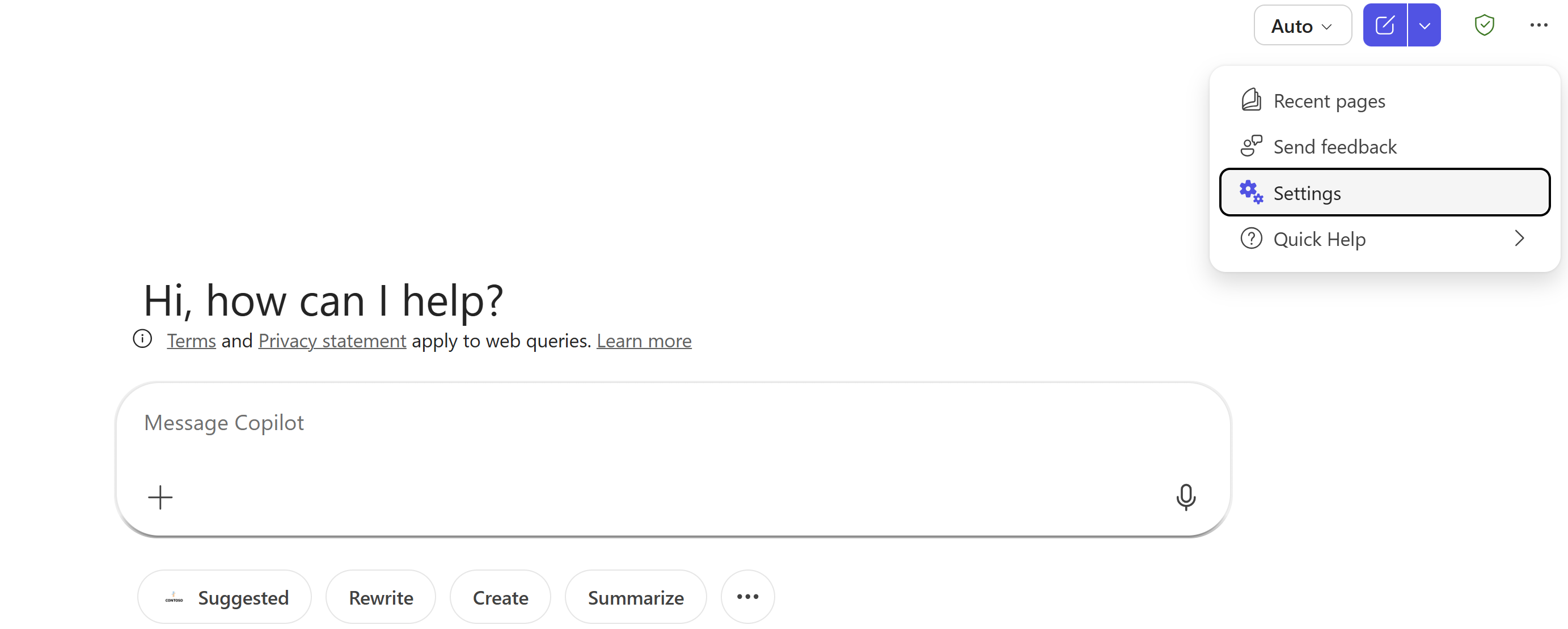
- In the settings dialog, select Sources in the left pane.
- Find the CCI MCP data source, select Connect, and complete authentication by signing in with an account that has an active Cortellis subscription.
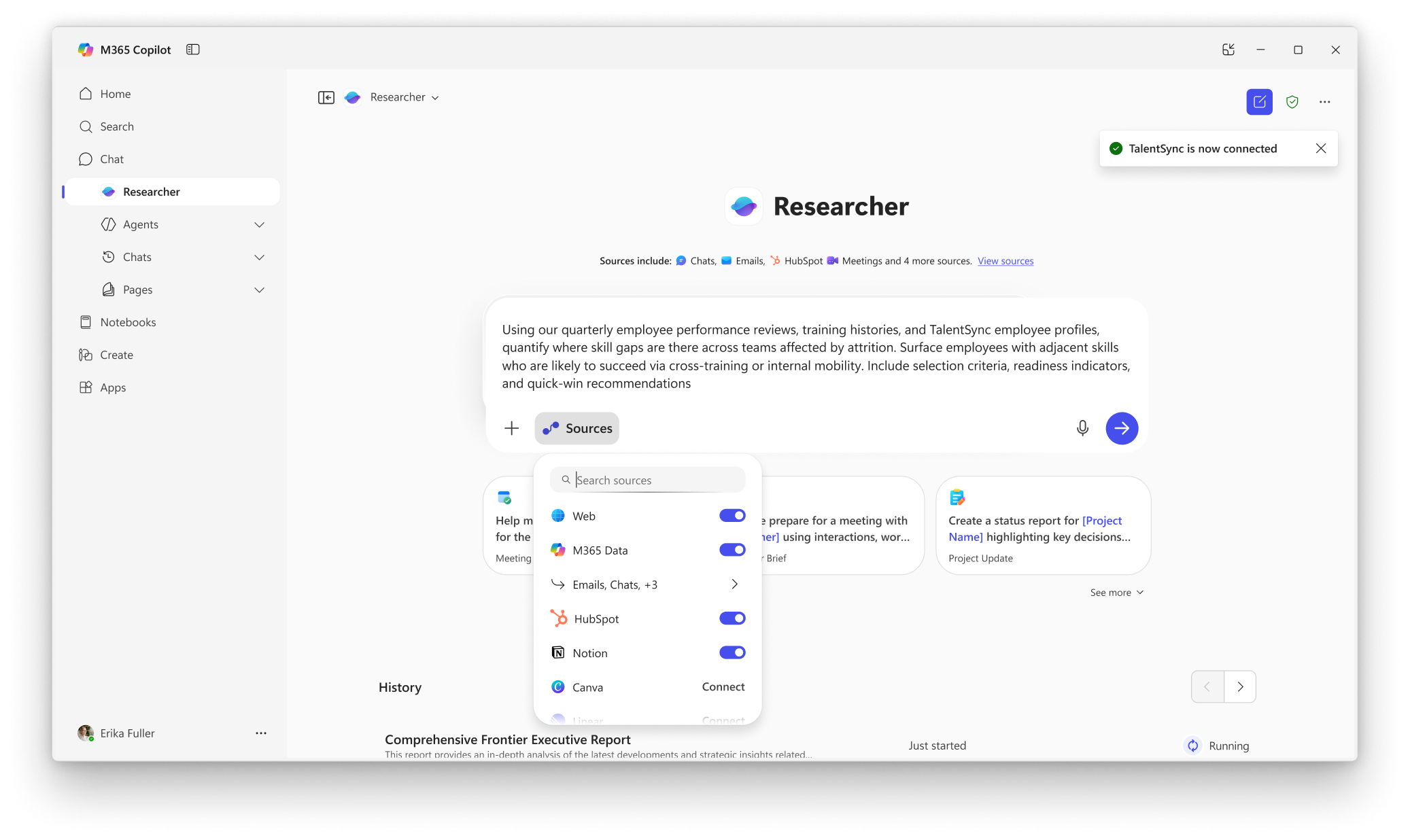
- Enter a prompt in Copilot Chat that needs Cortellis data.
Note: No data is indexed into Microsoft 365. Responses are fetched dynamically from the data source via MCP.
Available Tools
- Cortellis Drug Details: Retrieves full details for a specific drug from the Cortellis database by drug ID, and returns an AI-summarized response tailored to the user's question.
- Cortellis Drug Search: Searches the Cortellis investigational drugs database and returns results as a CSV.
- Cortellis Entity Finder: Provides entity finding / autocomplete capabilities for indications, actions, technologies, and companies in the Cortellis database.
- Cortellis Render Visualization: Renders validated structured data as an MCP App visualization for hosts that support rich UI.
Troubleshooting
For support, please contact [email protected].
Privacy
See Clarivate's privacy notices and policies.
Terms of Service
See Clarivate's terms of service.
Building your own agent instead? See the Microsoft Copilot Studio setup guide.